This is an example of how to setup a rectangle and circle label.
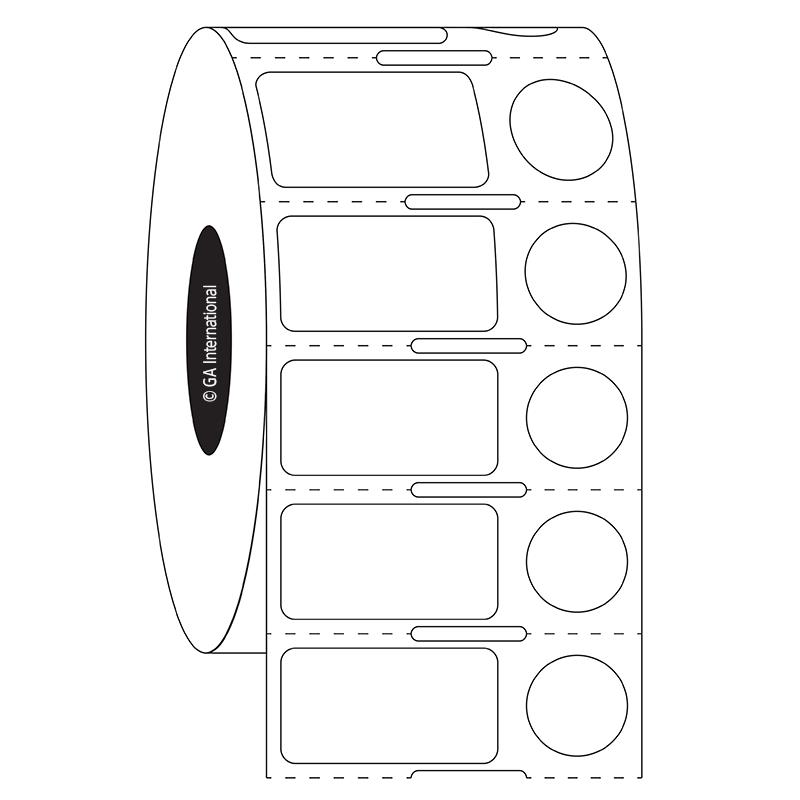
The setup in this example is for a specific label type (DFP-52 by Labtag). For other labels or printers, change the margins and positions to align the printed text and barcode.
In the 'Print label' pop up window click on the pencil icon to edit the template (available for admins).
Click on 'Advanced setup'.
Adjust the margins and position to fit the text inside the rectangle.
In the 'QR Code' section, edit the QR code position to be 'Middle' in the vertical position. Choose 'Right' or 'Left' in the horizontal position depending on the side of the circular label in your label type.
The printer used in this example is ZD-410 by Zebra, this is the an example setup done on the printer app.
With this template setup, the text will be printed on square and the QR code/Datamatrix on the circle:
Run a test print to verify the print is aligned with the labels, and adjust the positions accordingly.
Comments
0 comments
Please sign in to leave a comment.